Settings - Browser
Select [Settings] from the pop-up menu to display the settings dialog.The following settings can be configured on the [Browser] tab.
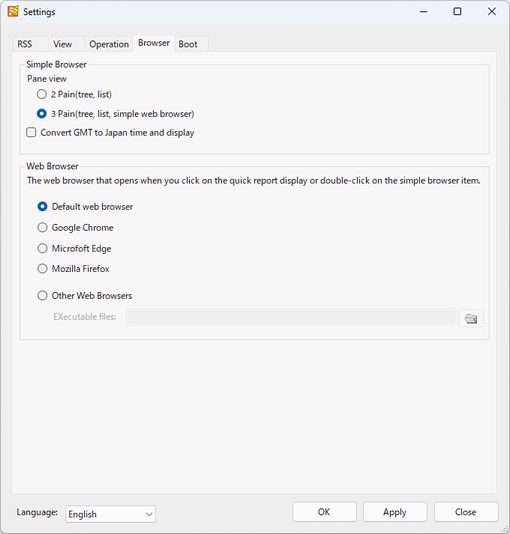
- Simple Browser
- Pane view
- 2 Pain
"Simple Browser" is displayed in two split screens: tree view and list view.
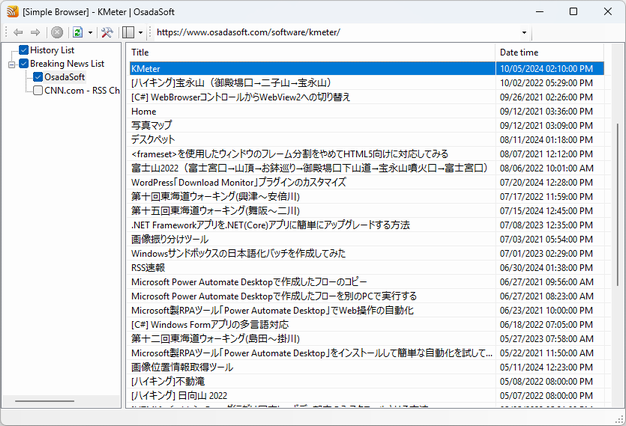
*Double-clicking a list item will launch the specified web browser and display the article.
- 3 Pain
"Simple Browser" is displayed in three split screens: tree view, list view, and simple web browser view.

- 2 Pain
- Convert GMT to Japan time and display
If you check this box, RSS data in GMT will be converted to Japanese date and time before displaying it.
Example)
Values in RSS <pubDate>Sat, 10 May 2025 00:04:32 GMT</pubDate> Displaying the Simple Browser 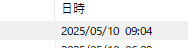
- Pane view
- Web browser
The web browser that opens when you click Show Latest News or double-click the "Simple Browser" item. Specify the web browser to be displayed when you perform the following operations.
- When you click on breaking news (subtitles or toast notification)
- When you double-click an item in the list of articles displayed in the list view of "Simple Browser"
When displaying breaking news, you can set it to display in a web browser that starts up quickly instead of the web browser you normally use, or to display it in the browser you normally use with "Simple Browser".
- Default web browser
- Google Chrome
- Microsoft Edge
- Mozilla Firefox
- Other Web Browser
Specify the full path of the exe file of the web browser you want to use in the executable file.
You must have the selected web browser installed.
*If you install each browser to a path other than the default installation path, the set browser may not open correctly.
If the installation path is different, select "Other Web Browsers" and specify the path that matches your actual environment.